How can I save my catalog searches?
Step 1:
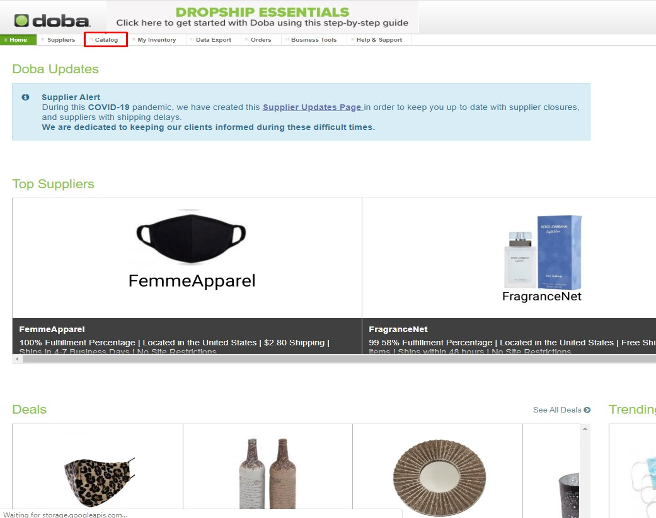
When you log into Doba.com you are greeted with the “Home” page, to use Saved Searches, you’ll need to click on “Catalog”
Step 2:
Apply any filters for the products you’re looking for.
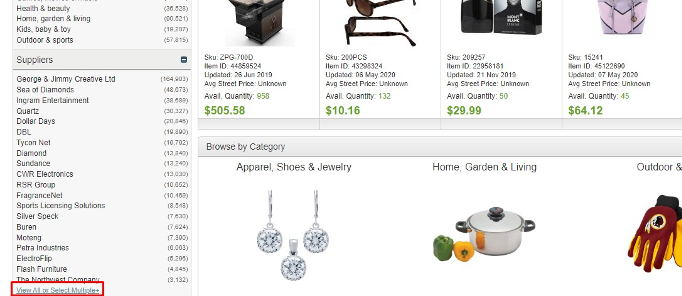
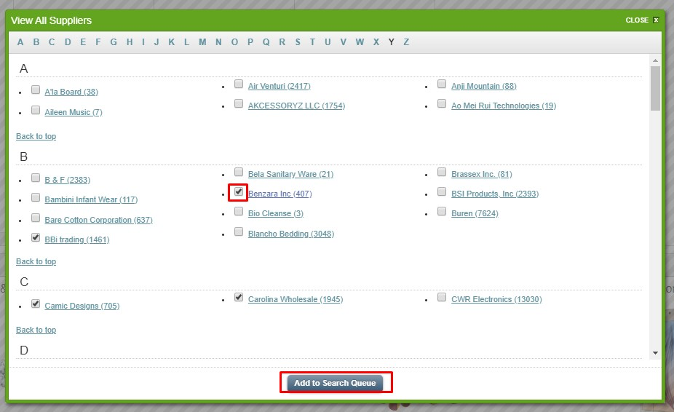
Make sure the boxes are checked then hit “Add to Search Queue”.
Step 3:
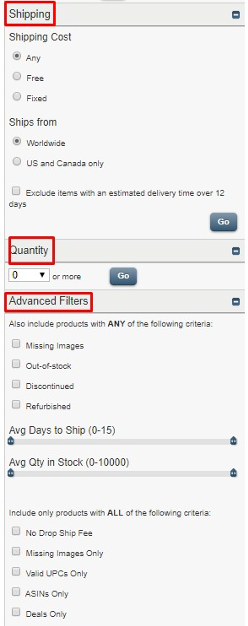
The step above shows you how to find suppliers and products that you would like, the other filters are shown below help refine your search for example, if any of the products have free shipping if they have a valid UPC/ASIN if there are deals for the supplier's products or not.
Step 4:
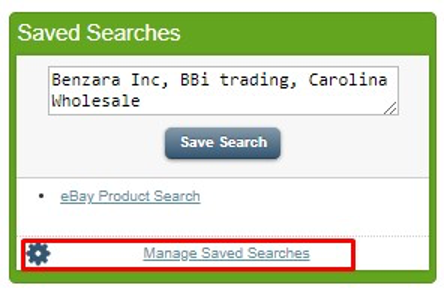
Once you have all the filters, scroll to the bottom to the “Saved Searches” box. This will have the filters within the Text Box.
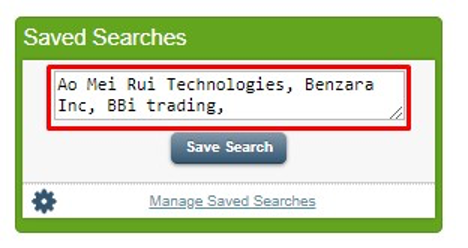
However, in this section, you can rename it for an easy way to organize. Getting rid of the information within that box will not deselect or forget the filter you have applied.
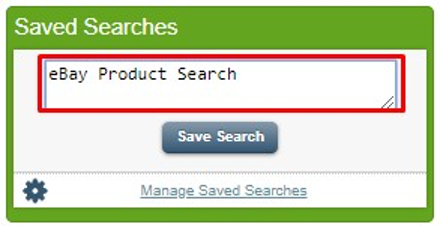
Step 5:
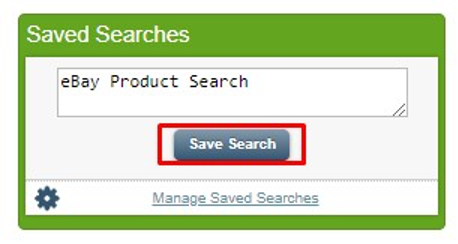
Once you have the search titled what you would like, click the “Save Search” button and it will save all the filters you’ve selected for this particular search.
Step Six:
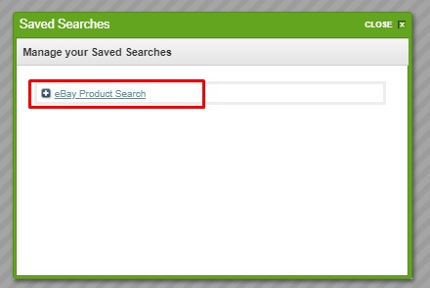
Once you’ve clicked to save the search the page will reload, your results still showing and will take you to the top, scroll back down to the “Saved Searches” section, and underneath the text box will show your saved search. Click on that and it will show the results of the filters saved.
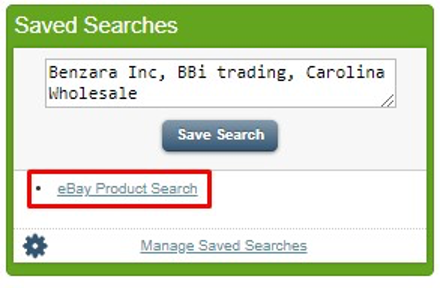
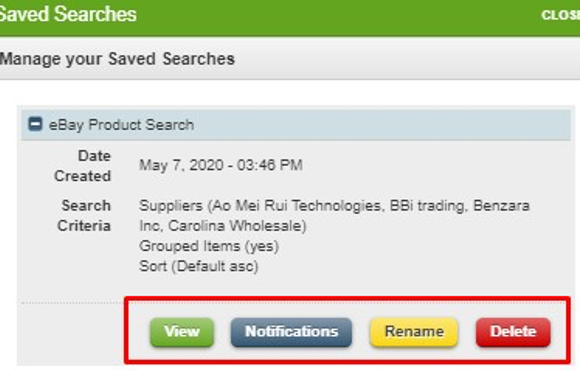
From there you can manage your saved searches, viewing them, setting notifications, renaming the search, or deleting it altogether.
We advise that you use Saved Searches to find products you want to add and sell, but not to keep tabs on items you have already listed for sale. The “My Inventory” tool is to help with that process and saves the products you’re selling for you to give you an easy way to find and order your products.
