Editing eBay Export with Google Sheets?
This article will help you learn how to list products on eBay using the Data Export Tool and Google Sheets
Ideally, you do want to have excel on your computer, to make the process a lot easier. If you do not have excel on your computer, you are able to use Google Sheets. You can find Google Sheets in your Gmail account, if you don’t have a Gmail account, creating one is very simple.
You will want to download your inventory list and, open it in Google Sheets once you have your Google Sheets up, your screen should look like this 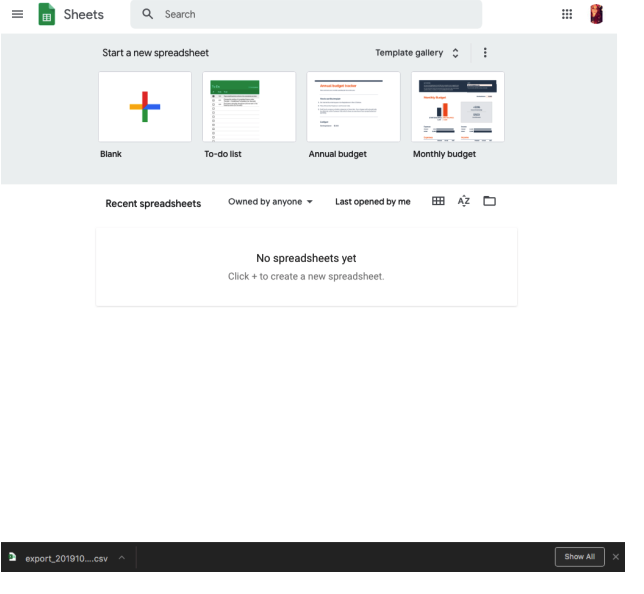
Next, you will click the “Blank” option under Start A New Spreadsheet.
Once you select the blank option, it will pull up an unused spreadsheet. You will click on “File” and “Open” . 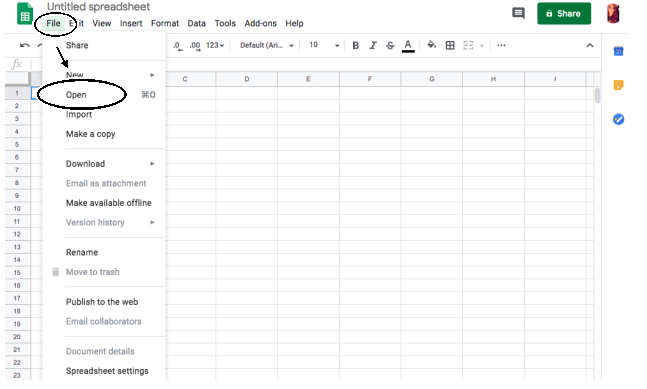
Once you press Open, your screen will look like this
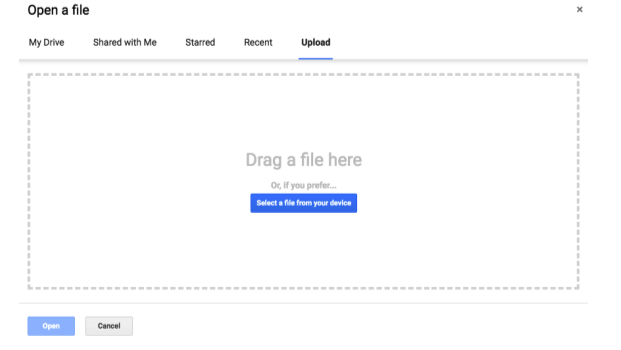
You will press “Select a file from your device” And select the export file that you exported from Doba. It should have downloaded in your downloads folder & will start with the word Export.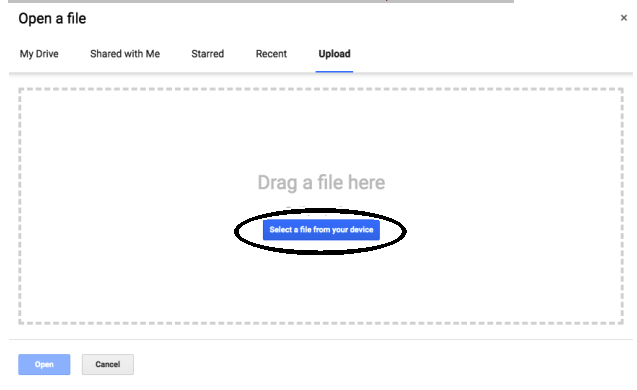
Now, your page should look like this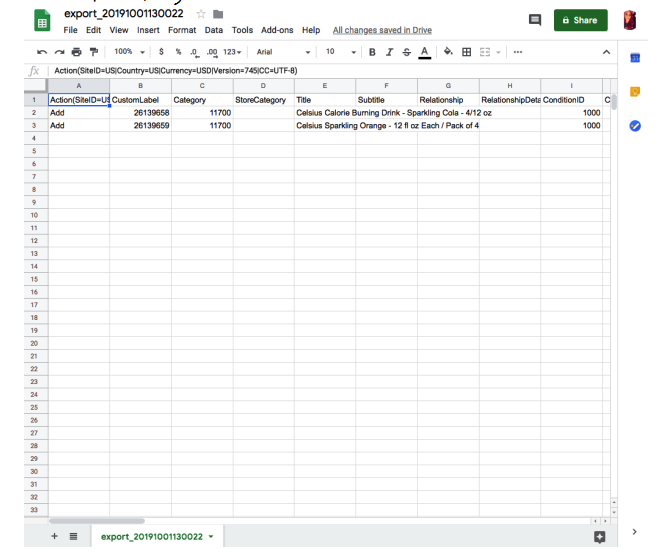
Now you can make changes to the spreadsheet like adding UPC's if the item does not already have one, change the item pricing, qty, name, description, etc.
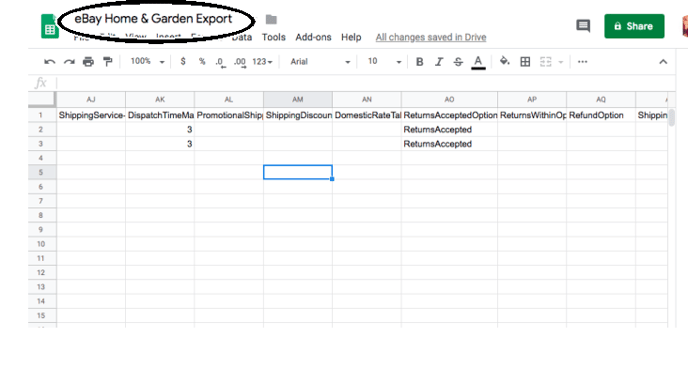
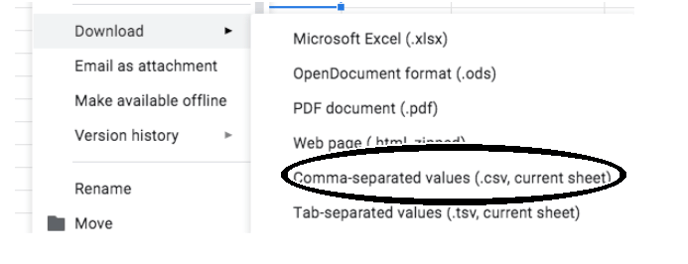
Once you have made your desired changes, you will go up to the top and name your file and, you will need to save it as a .CSV
Importing:
Go the Uploads section of the page, which looks like this: 
Click start upload

You will then select your file, after you have selected your file it will automatically upload.
You will then see the following screen:

Scroll to the right, then you will see the status of your listings as such: 
There will be an indication of how many failed and completed listings you have. For further information proceed to the Download Details section and click on the arrow.
There will be two options, choose the second one which is the download response option, shown on this screen:

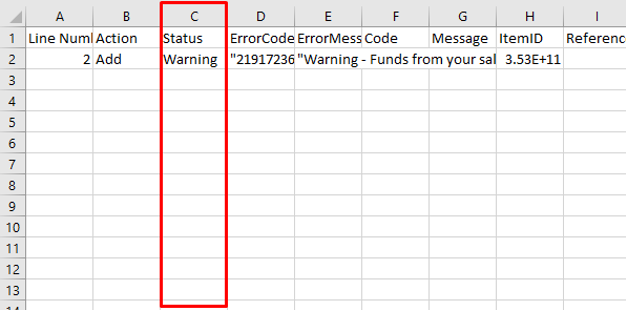
The file indicates in column C; warning if the listings are active (they went through successfully) and failure if there is an error. Column E still indicates what the warning or error message are, if any
Go to the Listings section of your Seller Hub and you should see your active listings you uploaded (exported) there
