
Once you have your inventory list put together, you’ll need to click into the “Data Export” tab this is the one at the top between
“My Inventory” and “Orders”
If you don’t already have a previous export, you’ll want to create a new saved export which is the blue button at the bottom.
Fill out the Name (This will be what your CSV file will save as on your computer, only you will see this information.) Choose what inventory list you’d like to export by selecting the bar next to “Inventory List”
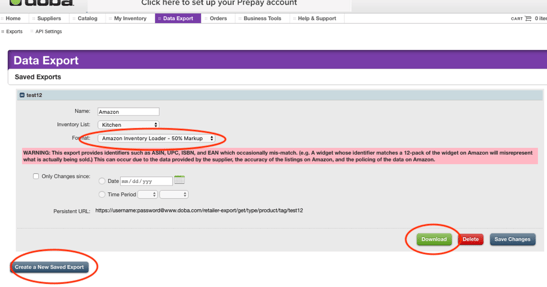
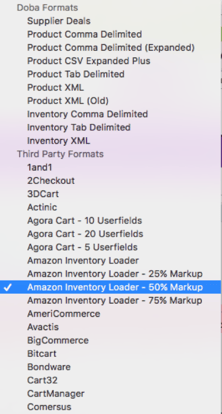
For the Format click on the bar that says “Supplier Deals” This will give you a drop-down with all the different formats. Since we will be exporting to Amazon we will need to select one of the Amazon Formats. We have three different variations of the format to choose from with Amazon: 25%, 50%, and 75% markups. This will increase the price according to the percentage you choose.
Once you have selected your format. Hit the green “Download” button at the bottom of the page. This will download everything from your selected inventory list to your computer as a CSV file. Once downloaded, don’t open the file. If the file is opened it’s likely that the format will change causing the Amazon upload to fail.
Now that we have our inventory downloaded we can import it into Amazon. You can click here to go straight to Amazon Seller Central.
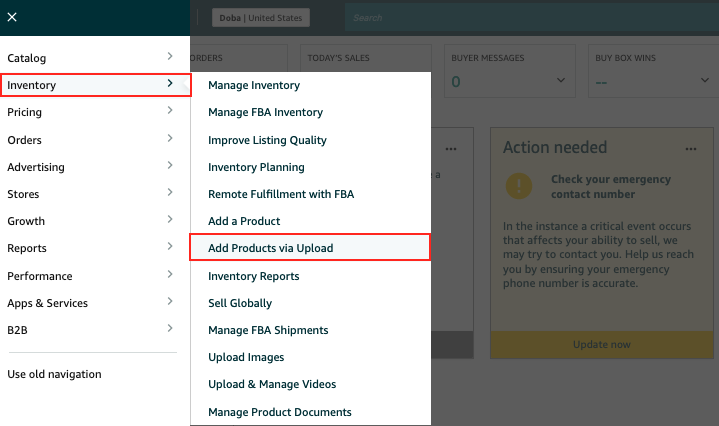
Hover over the INVENTORY menu and click “Add Products via Upload”
At the top of the page you’ll see “Check and Upload your Inventory File” Click on that.
%20(14).png?width=668&name=image%20(14)%20(14).png)
Your page should look just like this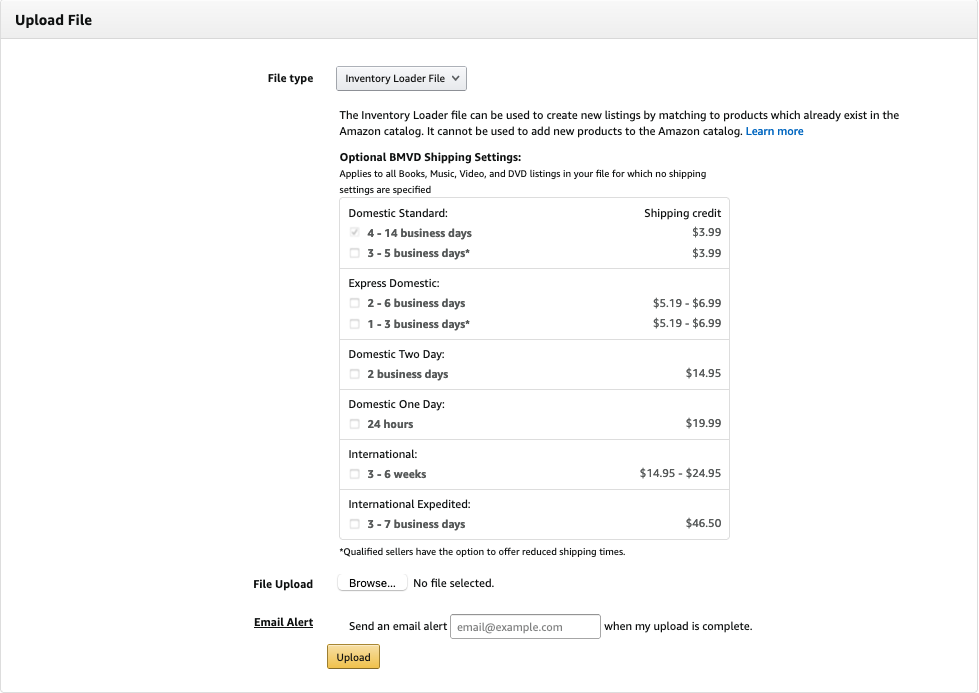
Next, under File Upload you will click Browse & select the file downloaded from Doba.
You then also have the option to add your email into the Email Alert section, to be notified when via email when your upload is complete.
This option is helpful when importing large inventory files.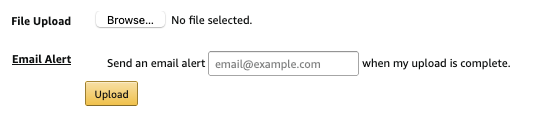
Next, you will click upload. Once uploaded you will see this message and be taken to a page where you can monitor your upload status.
.png?width=688&name=image%20(21).png)
Here is a before and after for when a file has been uploaded.
-1.png?width=688&name=image%20(22)-1.png)
.png?width=688&name=image%20(23).png)
Once the upload is finished you can view your upload results by clicking “Download your Processing Report.” Or you can check your inventory to see if you can view the products there.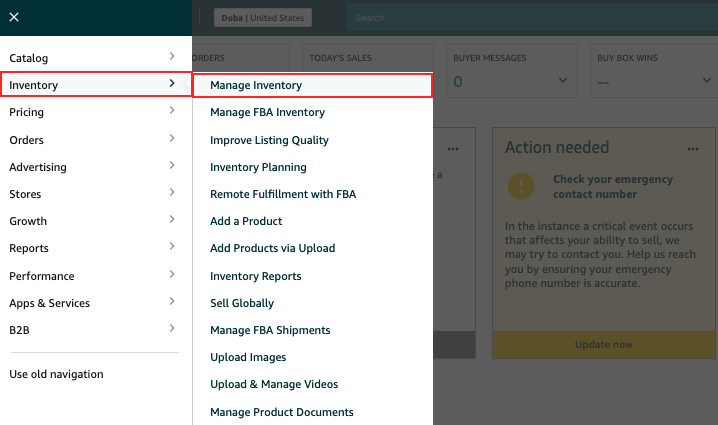
.png?width=688&name=image%20(24).png)